Inviting Team Members
Once your organization is set up, you can invite team members to collaborate on projects. This guide demonstrates how to manage your team list and send new invitations.
Written By Jasen Fici
Last updated 8 months ago
Step 1: Access Team Management
To manage your team, you must first navigate to the correct administration area in the sidebar:
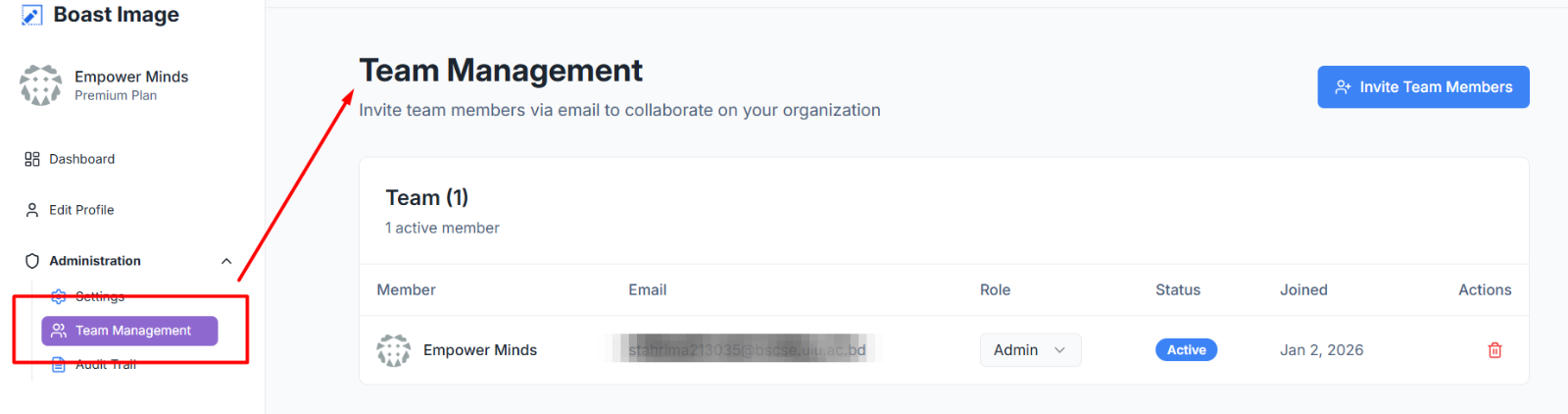
Locate the Administration dropdown menu on the left-hand navigation bar.
Click on Team Management to open the team dashboard.
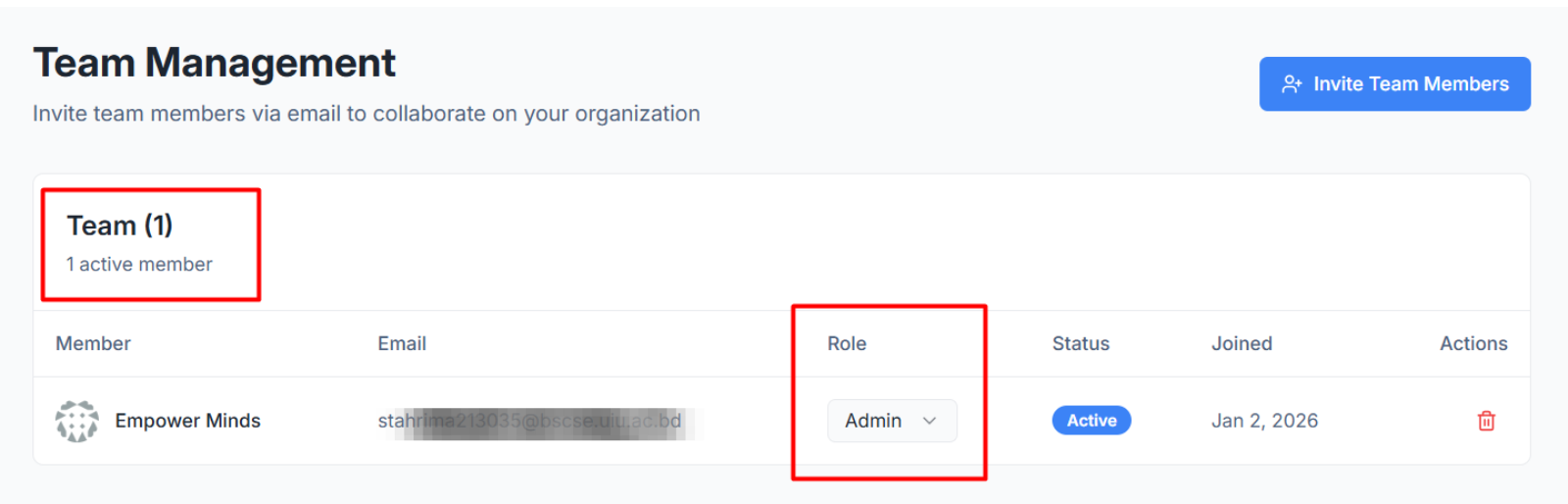
You will now see the Team Management dashboard, which provides a professional overview of your current workforce. This dashboard lists all members, their assigned roles, and their specific join dates.
Step 2: Send an Invitation
Adding a new member is done directly from the management list, provided you have available seats in your subscription.
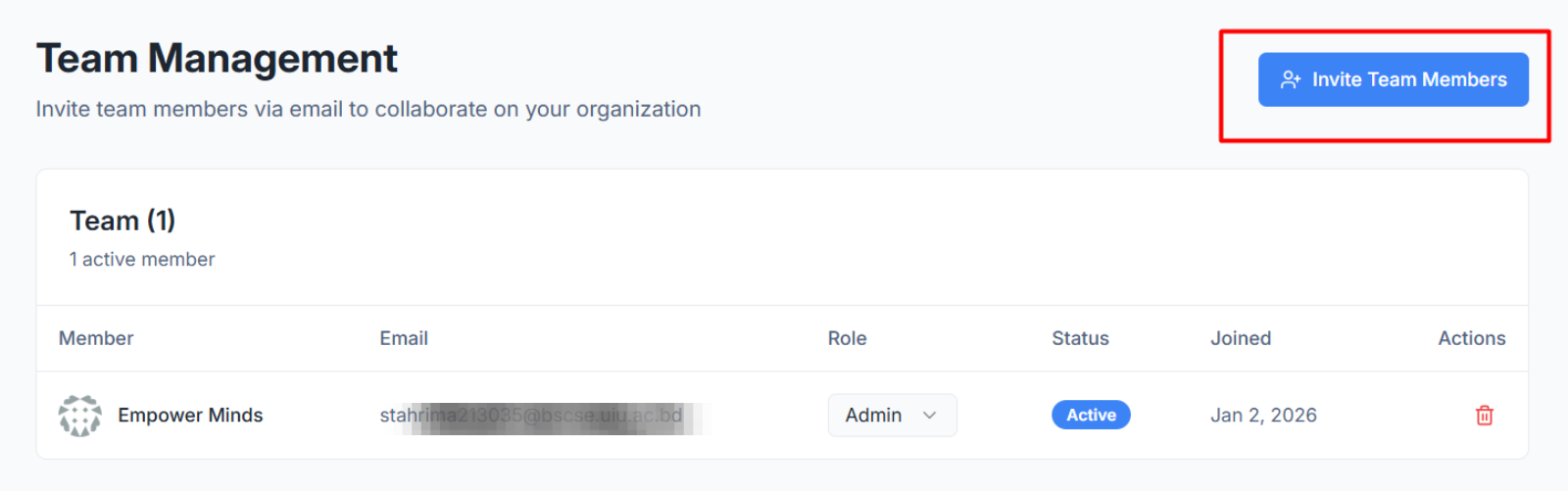
Initiate Invite: Click the blue Invite Team Members button in the top-right corner.
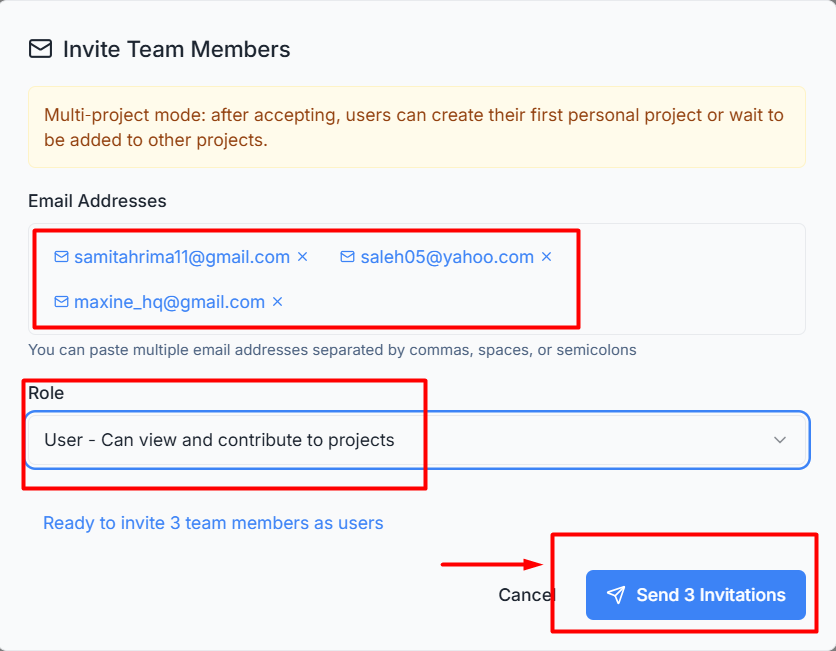
Email Entry: In the Email Addresses field, type the email address of the person you want to invite. You can add multiple emails at once by separating them with commas or semicolons.
Assign a Role: Select a Role from the dropdown menu to define the user's permissions:
User: Can view and contribute to projects.
Admin: Has full access to manage organization settings, billing, and all projects.
IMPORTANT: Understanding Paid Licenses : Every invited team member consumes one paid seat from your subscription plan.
Each invitation = 1 paid license used
You can only invite users up to your current license limit
If your limit is reached, you MUST upgrade your plan before sending more invitations
Pending invitations also count toward your seat limit
Step 3: Track Invitation Status
After clicking Send Invitations, you can monitor the progress of your requests within the team table:
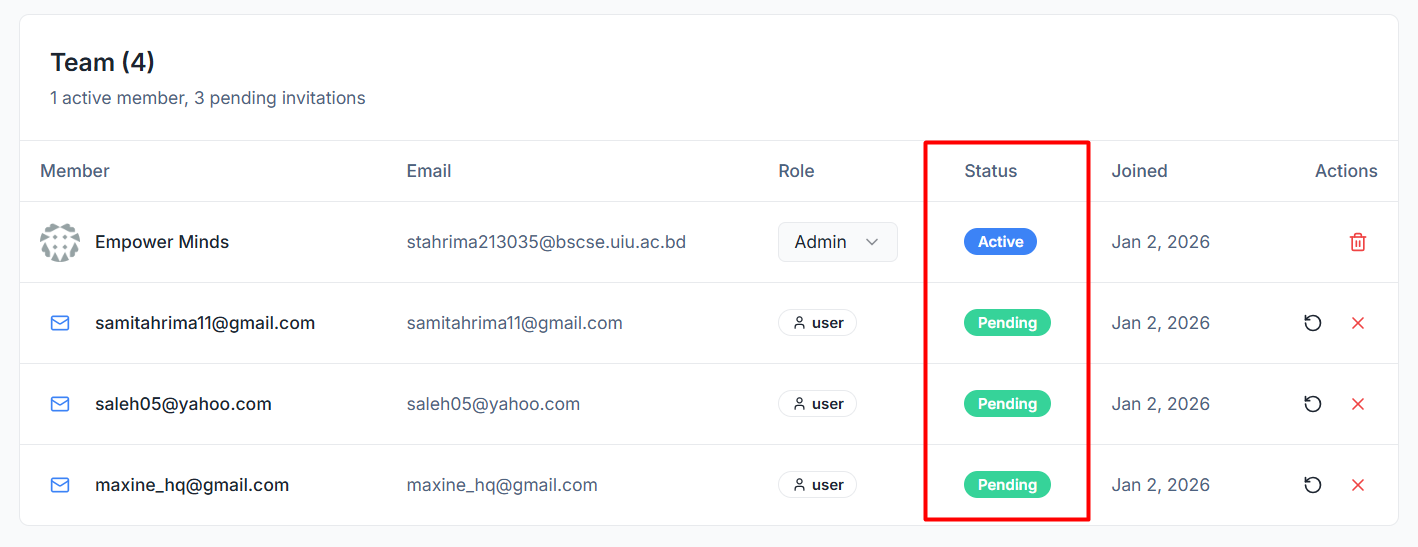
Pending Status: Newly invited users will appear with a Pending status until they accept the invitation via the automated email sent to them.
Active Status: Once the user joins, their status will switch to Active, indicating they are officially consuming a paid seat.
(Automatic Access: In Single-Project Mode, invited users are automatically granted access to your Default Project as soon as they join the organization.)