Editing Your Profile
Manage your personal account details, profile picture, and display name to determine how you appear to other team members within Boast Image. Keeping your details up to date ensures clear communication and professional identity across all your projects.
Written By Jasen Fici
Last updated 10 months ago
Access the Profile Editor
To begin managing your personal information, locate the navigation sidebar on the left side of your screen and click on Edit Profile, found directly above the Administration section.
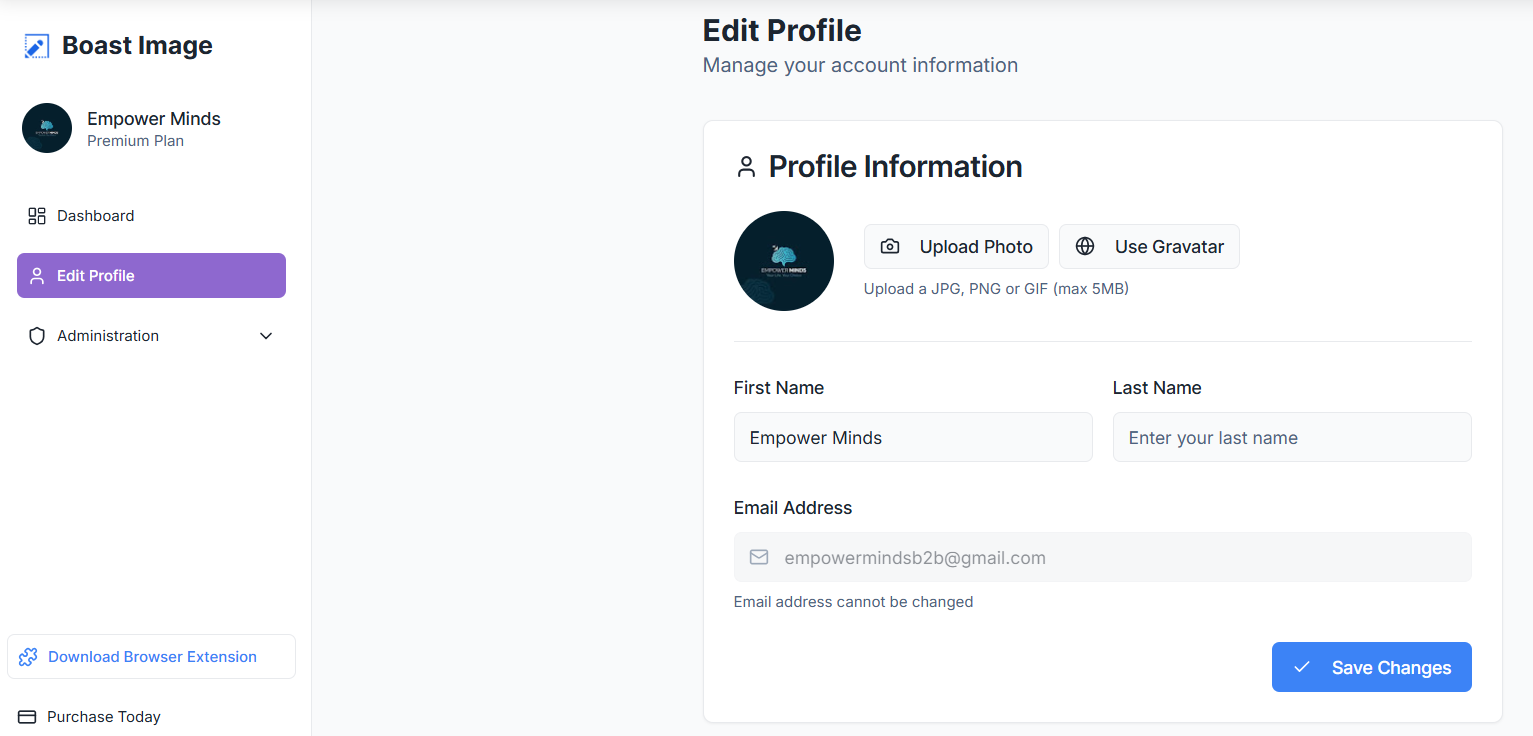
Update Your Profile Picture
Where Your Changes Appear: Your profile updates are visible immediately across all projects, your name appears in comment threads, task assignments, and team member lists . Profile picture displays next to all your annotations and feedback (changes apply instantly—no delay or refresh needed).
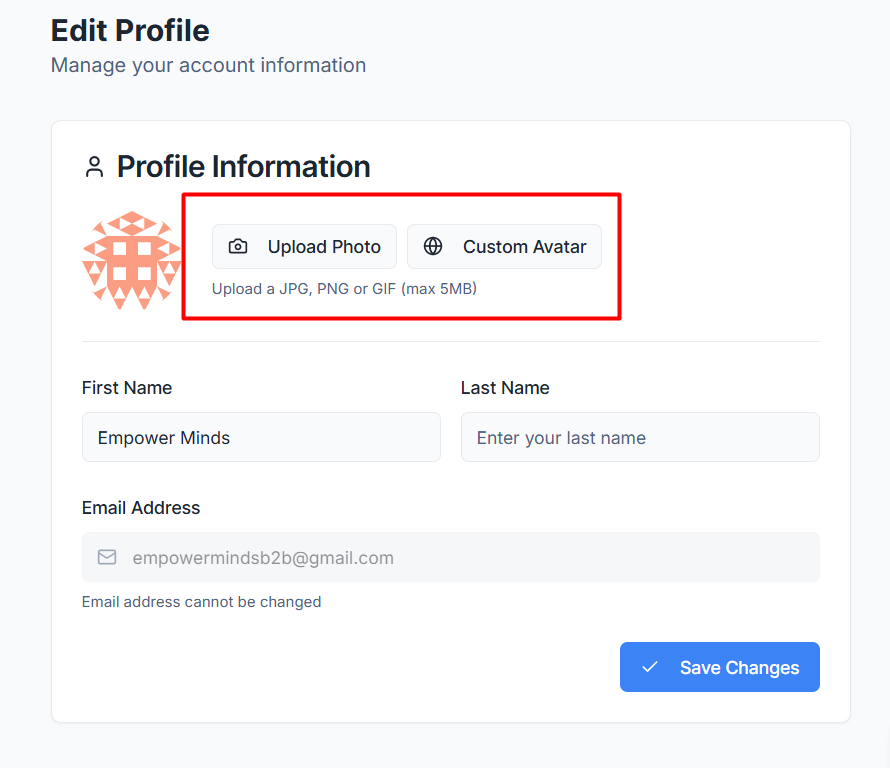
Profile Picture: You have two options for your profile image:
Upload Photo: Select a personal image from your computer in JPG, PNG, or GIF format (Maximum limit 5MB).
Use Gravatar: Automatically pull the profile image associated with your email address via the Gravatar service.
Your name is shown across the app whenever you create annotations or reply to comments.
First Name: Enter your given name in the provided text field.
Last Name: Enter your family name in the adjacent field.
Email Address: This field displays the address currently linked to your Boast Image account.
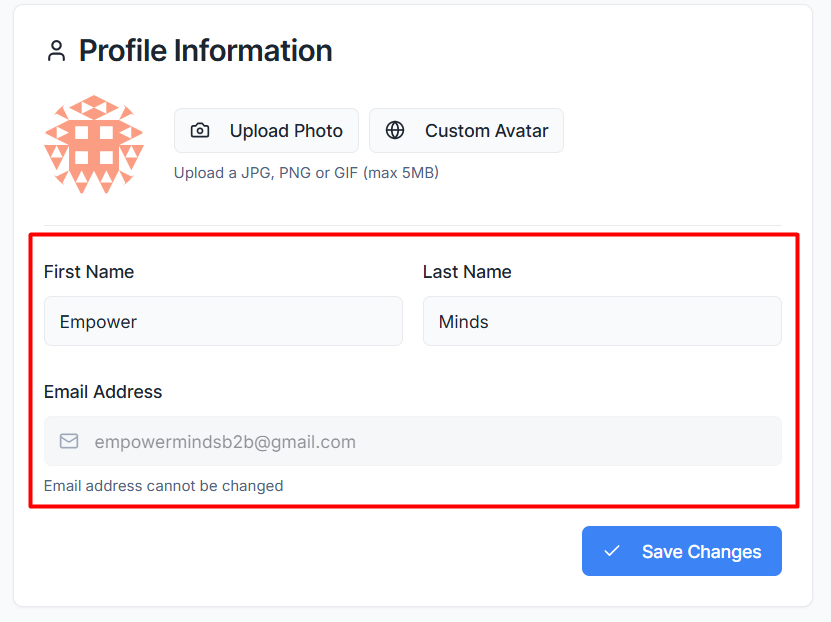
Note: Your email address is tied to your account security and cannot be changed from this screen. Contact support if you need to update your primary email.
Saving Your Preferences
Once you have updated your information, review it for accuracy and click the blue Save Changes button at the bottom right of the profile card to apply the updates.
Was this helpful?
Still need help? Ask the team