Image Related Tasks
Image Related Tasks are work items directly associated with a specific image in your project. This feature enables you to organize your workflow around visual content, making it easy for team members to understand exactly what needs to be accomplished for each individual image.
Written By Jasen Fici
Last updated 10 months ago
Use this feature when you need to convert a specific annotation into an actionable task to ensure it is completed by a team member.
Managing Tasks Within the Image Editor
The Tasks tab in the Image Details sidebar provides a centralized view for defining and tracking work while viewing an image.
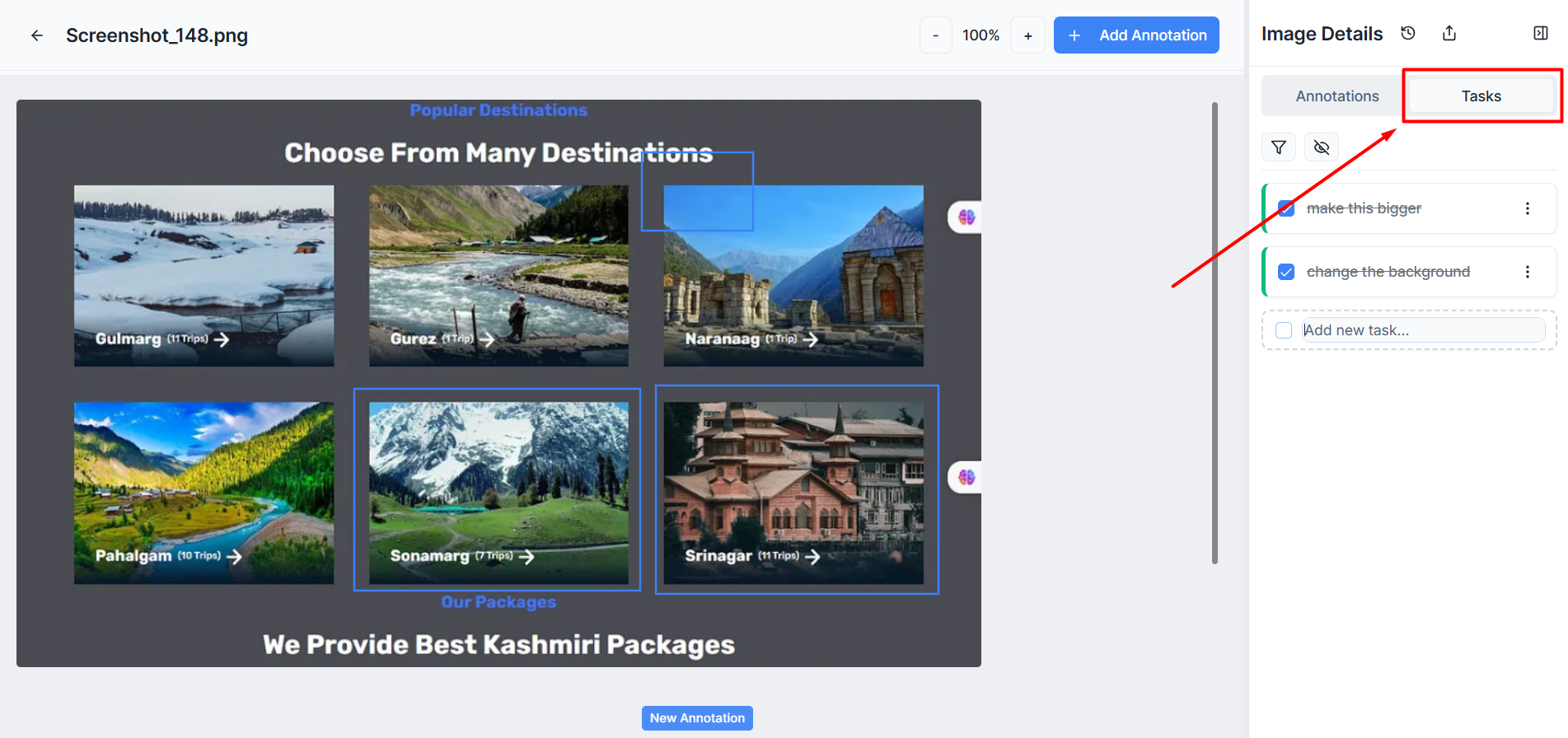
Creating a New Task: You can create a task directly from the image view by typing instructions into the Add new task... field at the bottom of the sidebar.
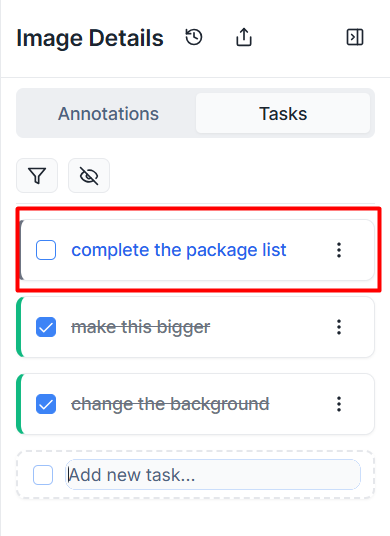
Task List Overview: Active tasks appear in an organized list showing the task title and a completion checkbox for easy tracking.
Visual Status Indicators: Tasks are color-coded to match their current stage, such as blue for In Progress or green for Completed.
Defining Task Information
Clicking on a task opens the Task Details window, where you can provide granular details and establish clear responsibility.
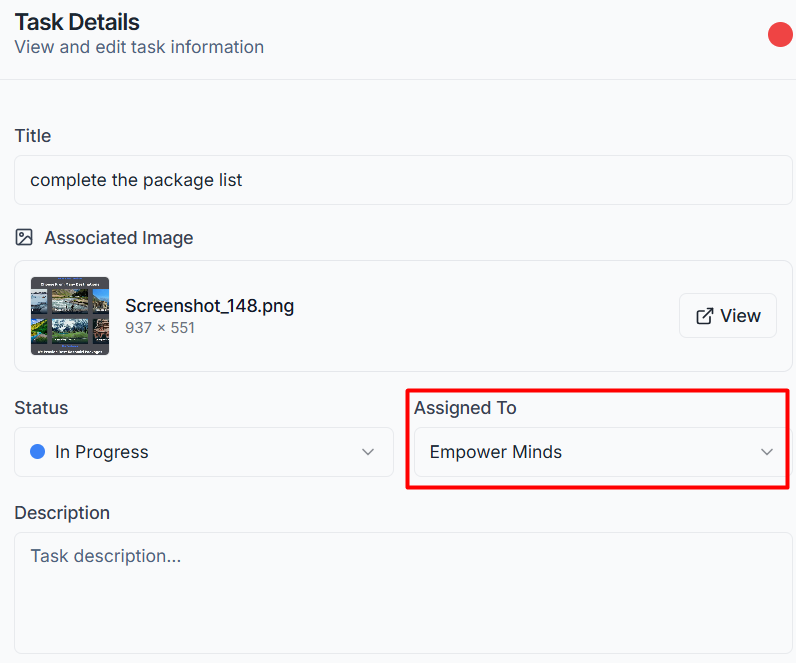
Assigning Responsibility: Use the Assigned To dropdown menu to select the team member responsible for reviewing designs, requesting revisions, or gathering feedback.
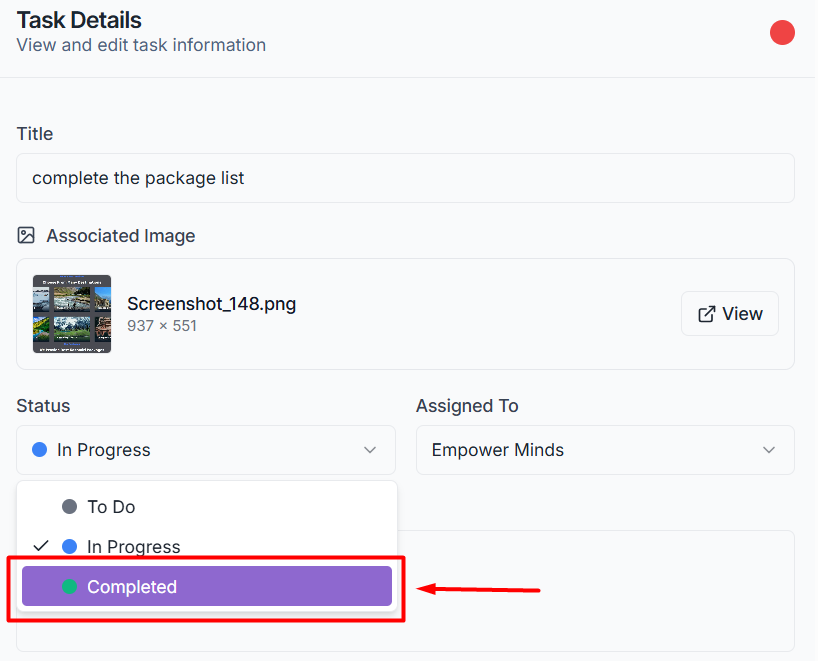
Updating Status: As pending work is addressed, you can update the workflow stage using the Status dropdown to track real-time progress.
Adding Descriptions: Use the Description box to add technical instructions, such as optimizing image files or documenting image rights.
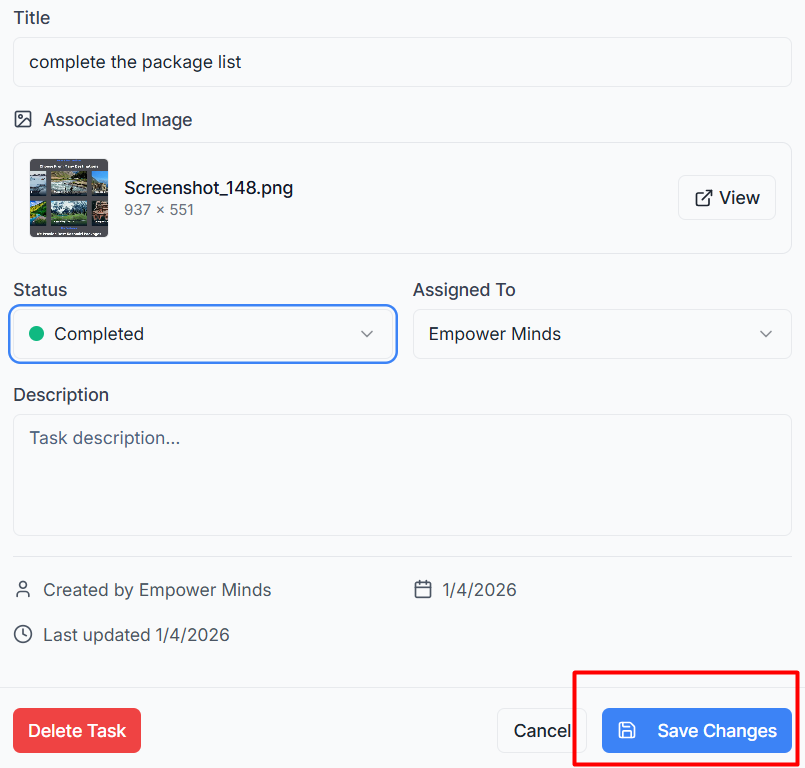
Finalizing Changes: Always click the blue Save Changes button at the bottom of the window to ensure the link between the task and the visual asset is updated project-wide.
Syncing with Project Views
Tasks created within an image are automatically synced with the main project dashboard to maintain a consistent workflow.
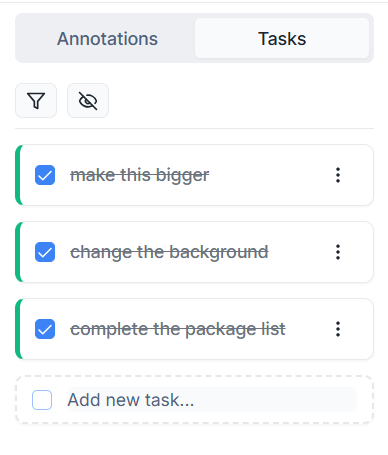
Progress Tracking: Completed tasks in the image editor will update the project's overall Project Tasks progress bar, helping you see at a glance which images are ready for the next step.
Workflow Consistency: Marking a task as done in the sidebar (by clicking the checkbox) will automatically strike through the text and move it to the Completed column in the Kanban view.
Was this helpful?
Still need help? Ask the team