Sharing Images Publicly
Public sharing allows you to gather feedback and approvals from stakeholders outside of your organization without requiring them to create a Boast Image account.
Written By Jasen Fici
Last updated 10 months ago
This is different than the share link for external collaborators, this is just to provide a readonly view into a collaboration.
How to Share an Image Externally
To provide external access to a specific image, follow these steps within the image editor:
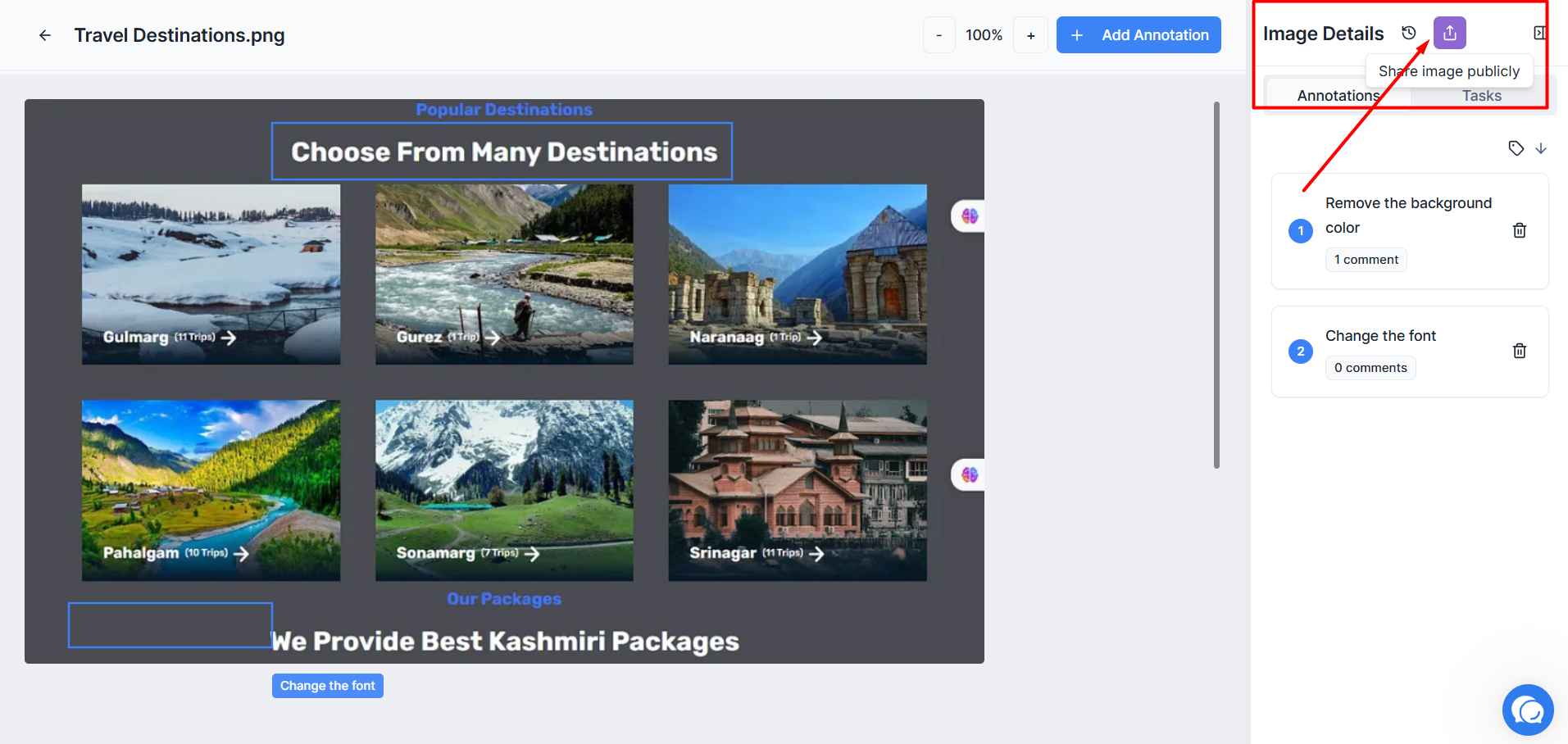
Easy Sharing Access: To begin, open an image and click the Share image publicly icon (represented by an upload arrow) located in the top-right Image Details header.

Enabling the Link: Within the Share Image Publicly popup window, toggle the Enable Public Sharing switch to the "On" position.
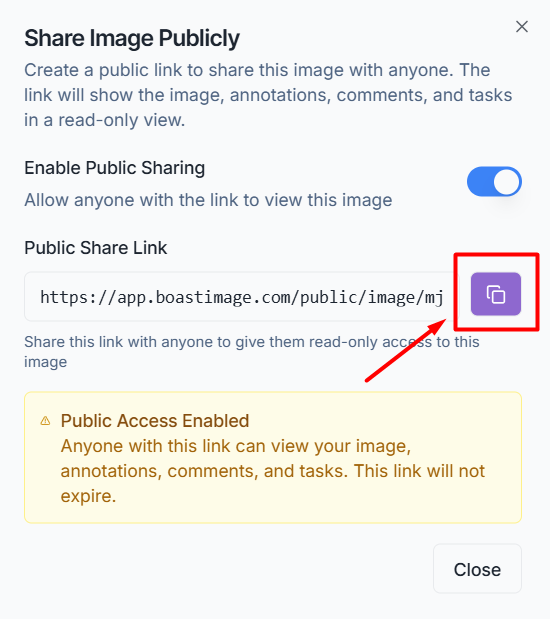
Public Access Rights: Once enabled, a yellow notification box confirms that Public Access is Enabled, allowing anyone with the link to view your image, annotations, comments, and tasks in a simplified, read-only format.
Copy for Distribution: Use the copy icon (purple square) next to the Public Share Link URL to instantly grab the address for your collaborators.
Closing the Menu: Once you have copied the link, you can click the Close button to return to the editor.
Why It Matters: This feature removes technical barriers for busy stakeholders, ensuring project momentum isn't stalled by account creation. It helps you reach decisions faster by giving anyone with the link immediate, secure access to view the latest designs and tasks. Enable this when you need a quick, friction-free way to gather "read-only" approval from a client who doesn't have time to manage a full user profile.
Was this helpful?
Still need help? Ask the team