The Multi-Project Dashboard
Get an overview of all your projects in one unified dashboard view
Written By Jasen Fici
Last updated 10 months ago
The Multi-Project Dashboard serves as the primary interface for managing and organizing work across multiple distinct initiatives within your organization. This centralized view is essential for project managers and team leads who need to monitor high-level progress across various screens without switching context.
Dashboard Analytics Header
At the top of the dashboard, four real-time analytics cards provide an aggregated snapshot of your organization's total activity across all workspaces:
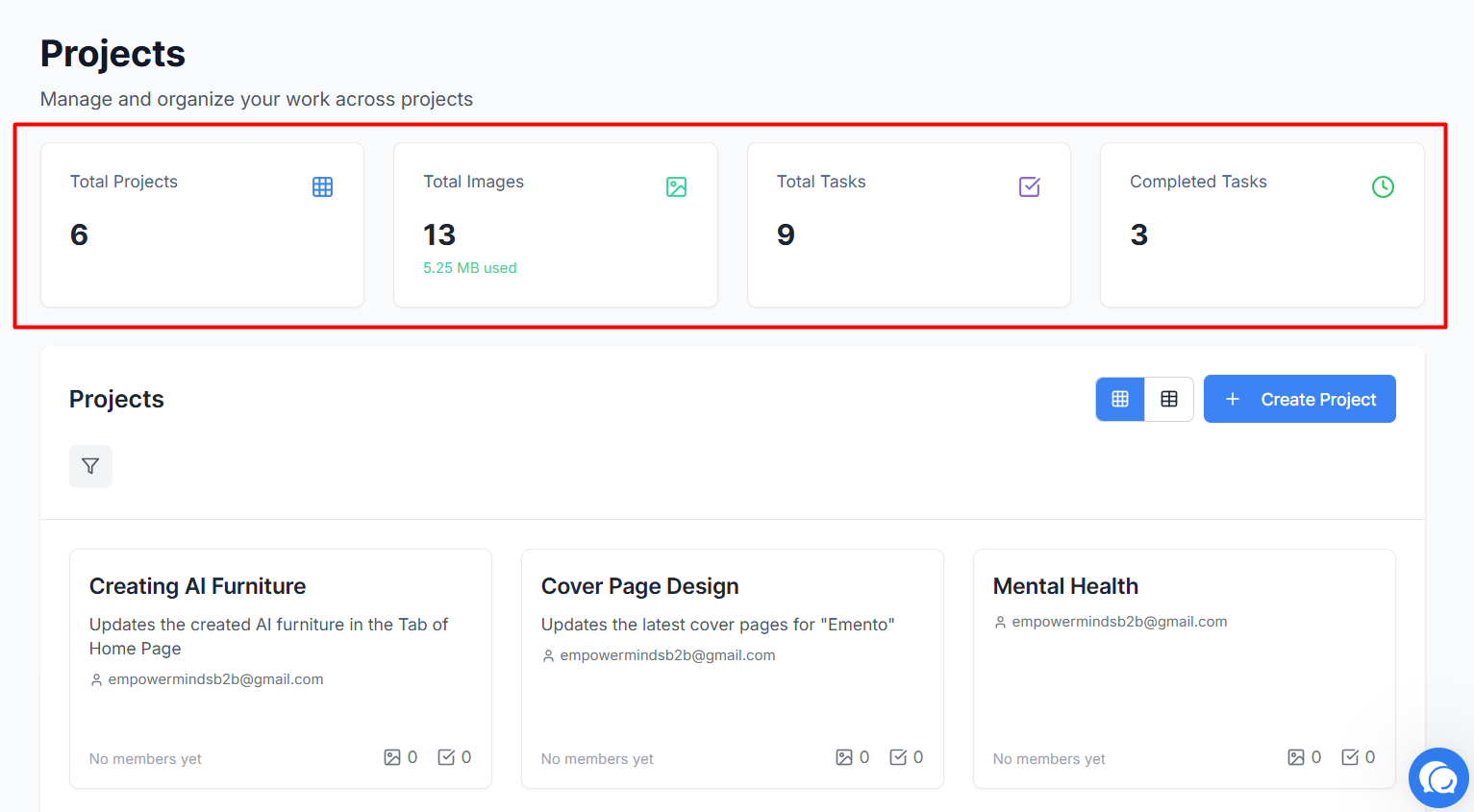
Total Projects: Displays the exact number of active projects currently being managed.
Total Images: Shows the cumulative count of uploaded files across all projects and the specific amount of storage used by the organization.
Total Tasks: Tracks the total number of open actionable items created across every single project.
Completed Tasks: Monitors overall progress and team productivity by highlighting how many tasks have reached a finalized state.
Navigation and Views
You can toggle between two primary views to manage your project list based on your organizational needs.
Grid View
The Grid View displays projects as visual cards, allowing for quick identification of specific workspaces.
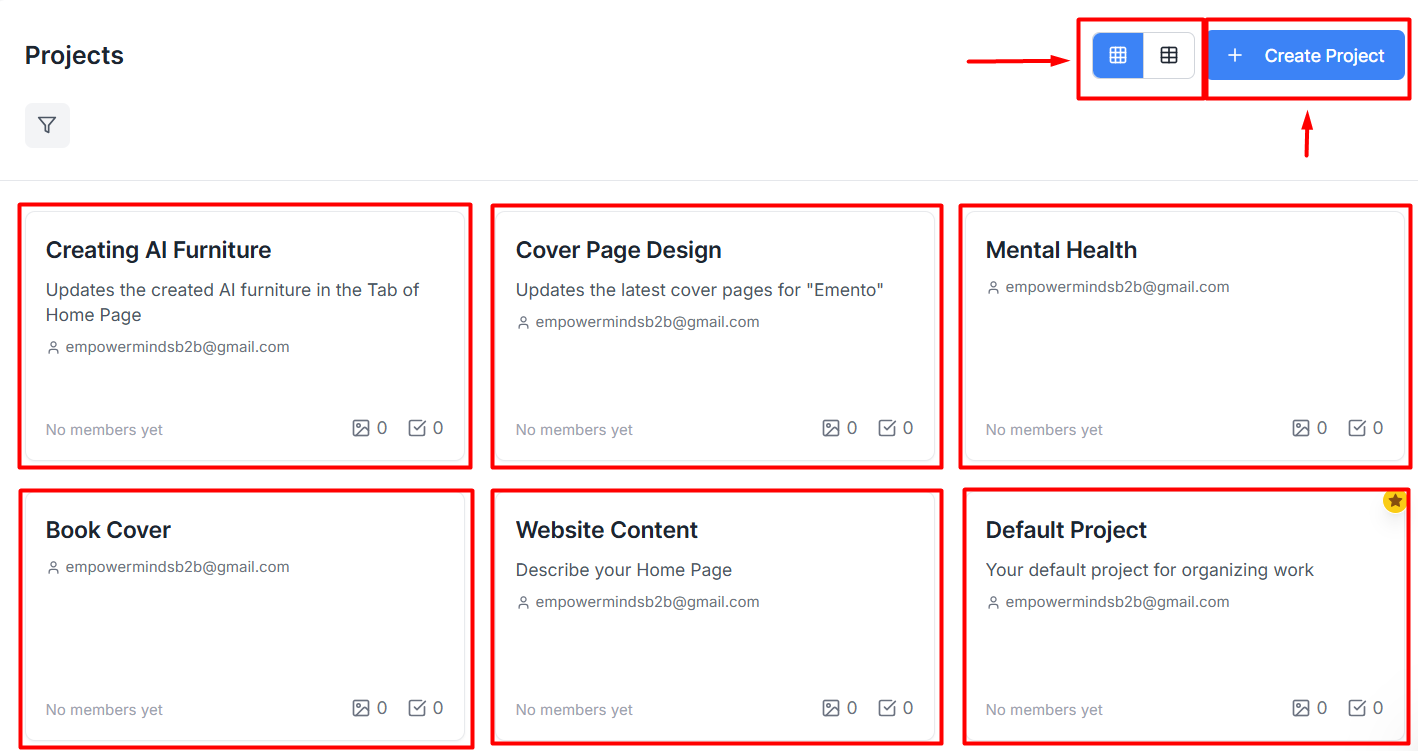
Project Cards: Each card displays the project name, a brief description, and the owner's email address.
Project Tally: Small icons at the bottom of each card show a quick summary count of the members, images, and tasks contained within that specific project.
Default Project: Your primary workspace is highlighted with a gold star icon in the top-right corner of its card.
Creation Tool: Click the blue + Create Project button in the top-right corner to expand your portfolio and launch a new workspace.
List View
The List View provides a detailed, table-based overview for more granular management.
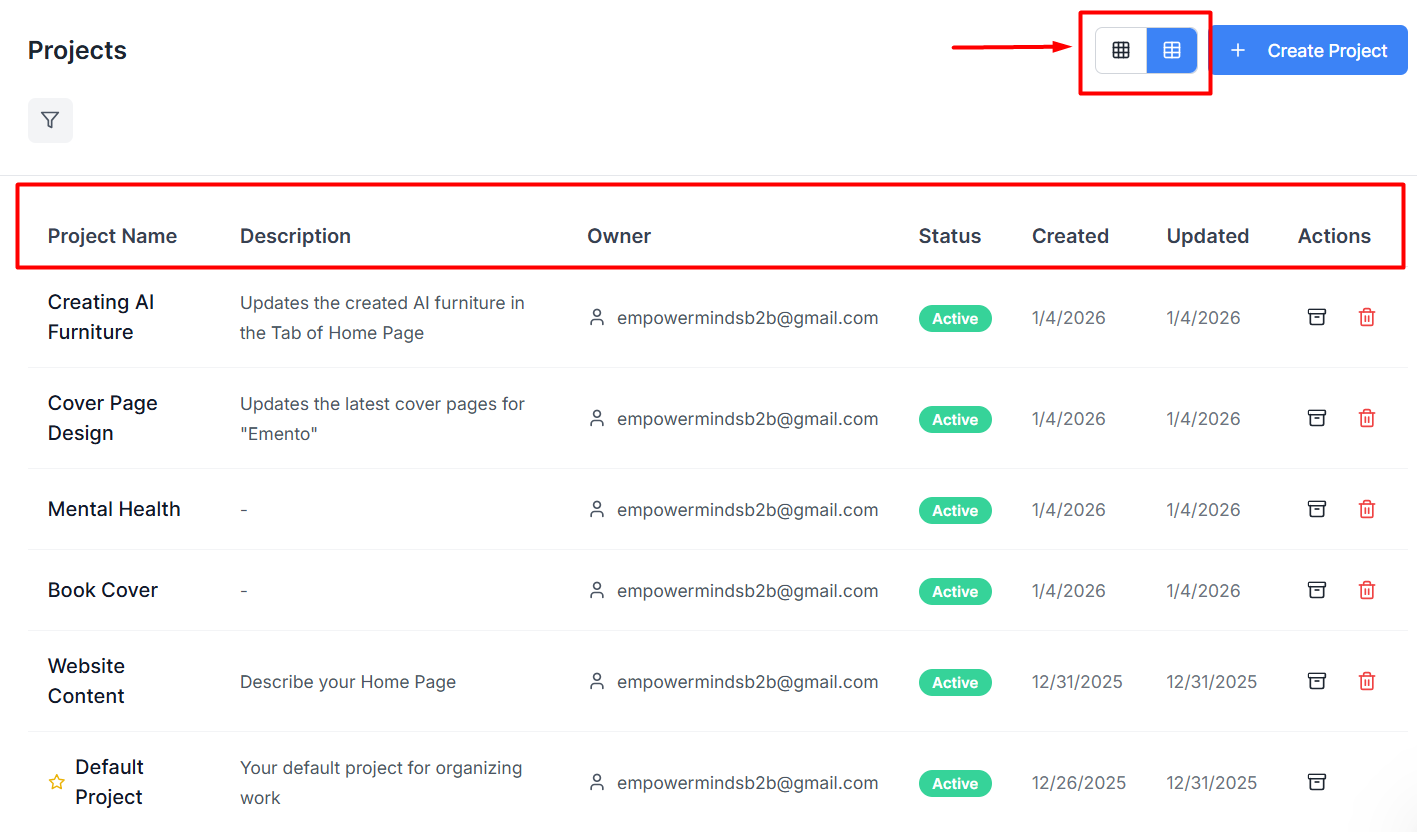
Detailed Columns: This view explicitly displays columns for Project Name, Description, Owner, Status (e.g., Active), and the exact dates the project was Created and Updated.
Project Actions: Use the Actions column to perform quick management tasks:
Archive project: Click the box icon to hide a project from the active view.
Delete project: Click the red trash can icon to permanently remove a workspace.
Dashboard Filtering
Use the filtering tools located above the project list to quickly locate specific work:
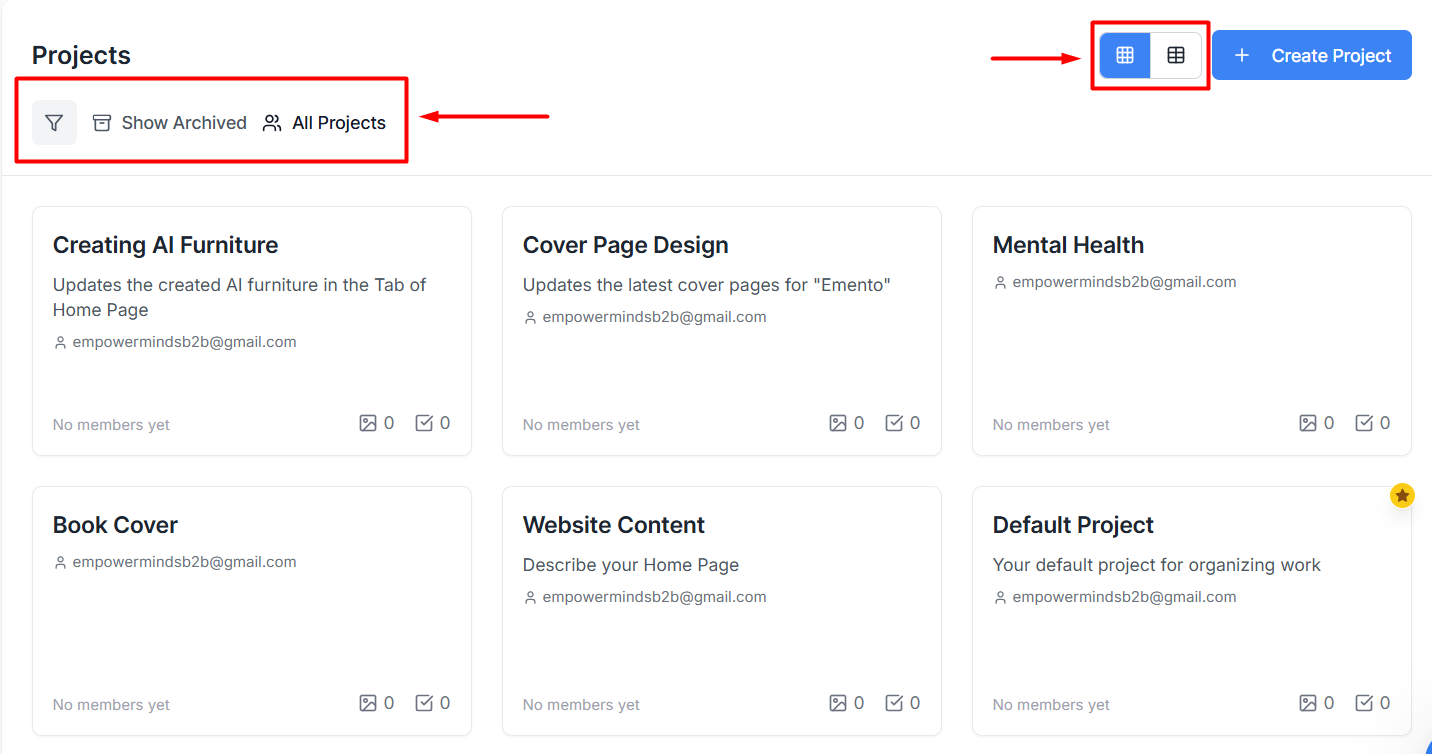
Filter Icon: Click the funnel icon to open advanced sorting and filtering options.
View Toggle: Use the grid and list icons next to the "Create Project" button to switch your dashboard layout.
Was this helpful?
Still need help? Ask the team