Project Share Link for External Collaborators
The Project Share Link provides a flexible way to grant project access to multiple external collaborators through a single, secure URL. This is ideal for broad stakeholder reviews where individual email invitations may not be practical.
Written By Jasen Fici
Last updated 10 months ago
Generating a Shareable Link
To create and manage a secure link for your entire project:
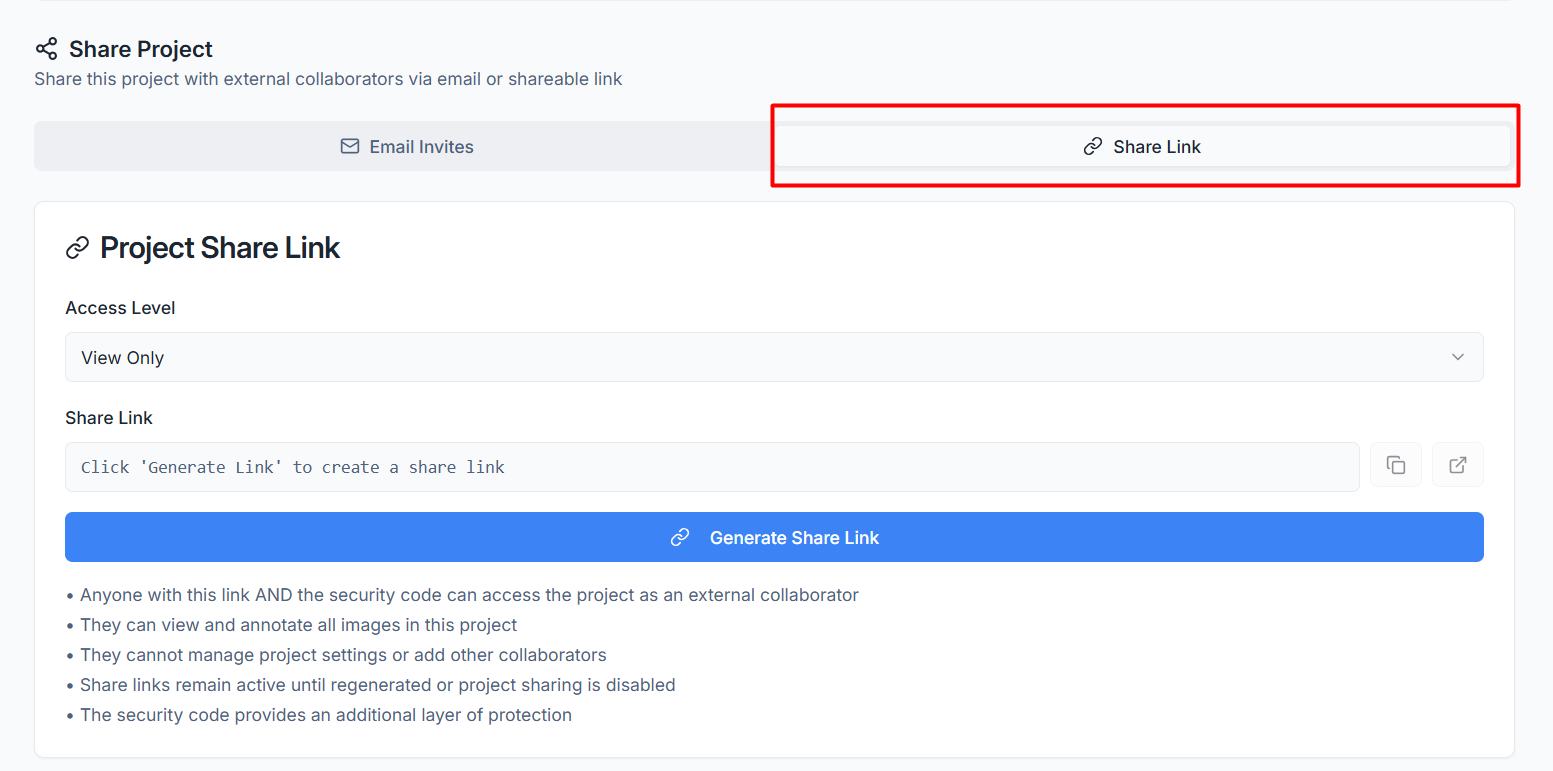
To collaborate with external stakeholders via a URL, navigate to the Share tab and select the Share Link sub-tab located next to the Email Invites option.
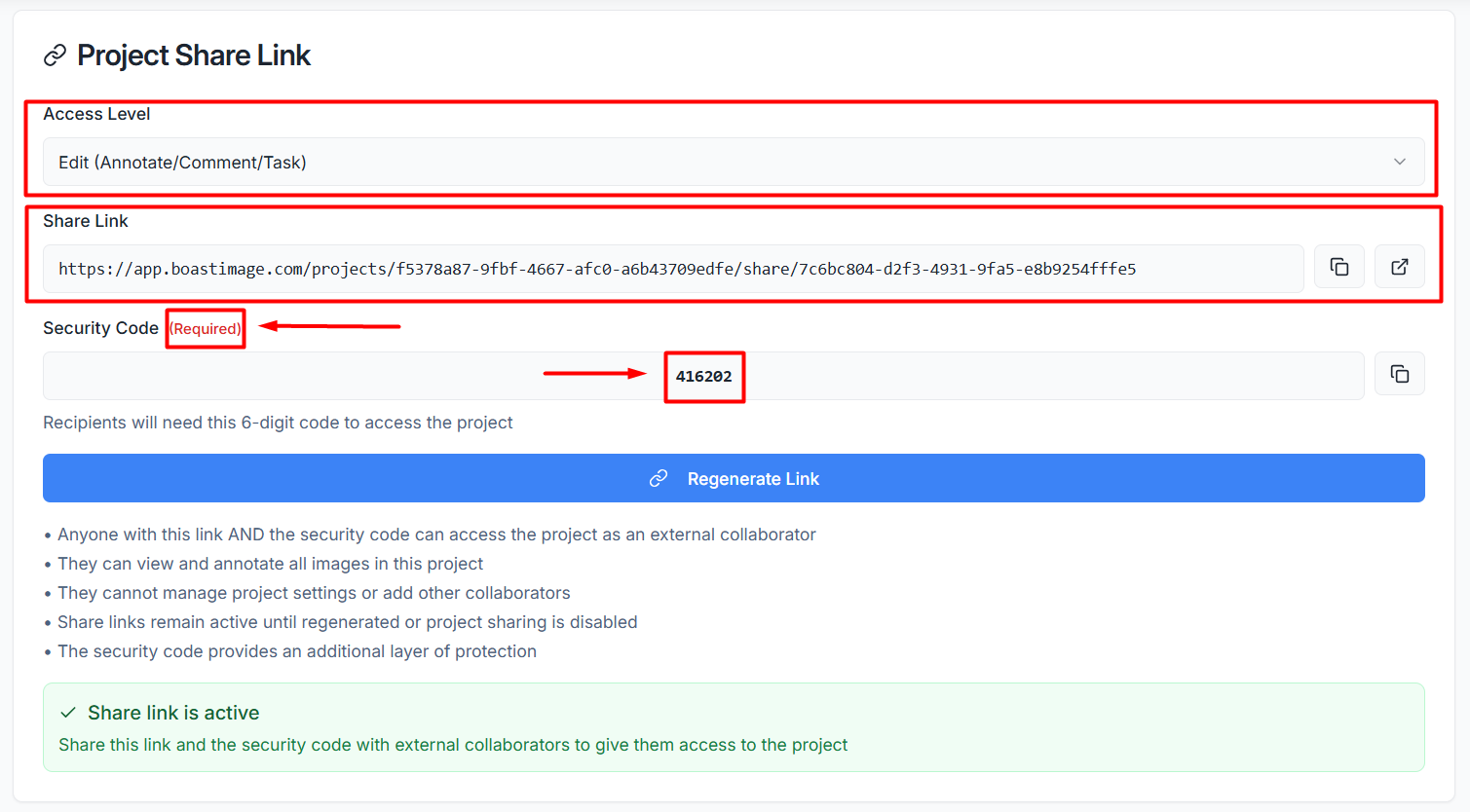
Define Access Level: Before generating the link, use the Access Level dropdown to set default permissions for anyone who uses it.
-View Only: Grants read-only access to all images in the project.
-Comment (View Tasks): Allows to view tasks and participate in comment threads.
-Edit (Annotate/Comment/Task): Grants full collaboration rights to add new feedback and manage tasks.
Generate the Link: Click the blue Generate Share Link button to create your unique project URL.
Security Code Protection: If enabled, any collaborator using the share link will be required to enter a unique 6-digit security code to gain entry.
Copy and Distribute: Use the copy to clipboard icon next to the generated URL or the security code to share access details with partners.
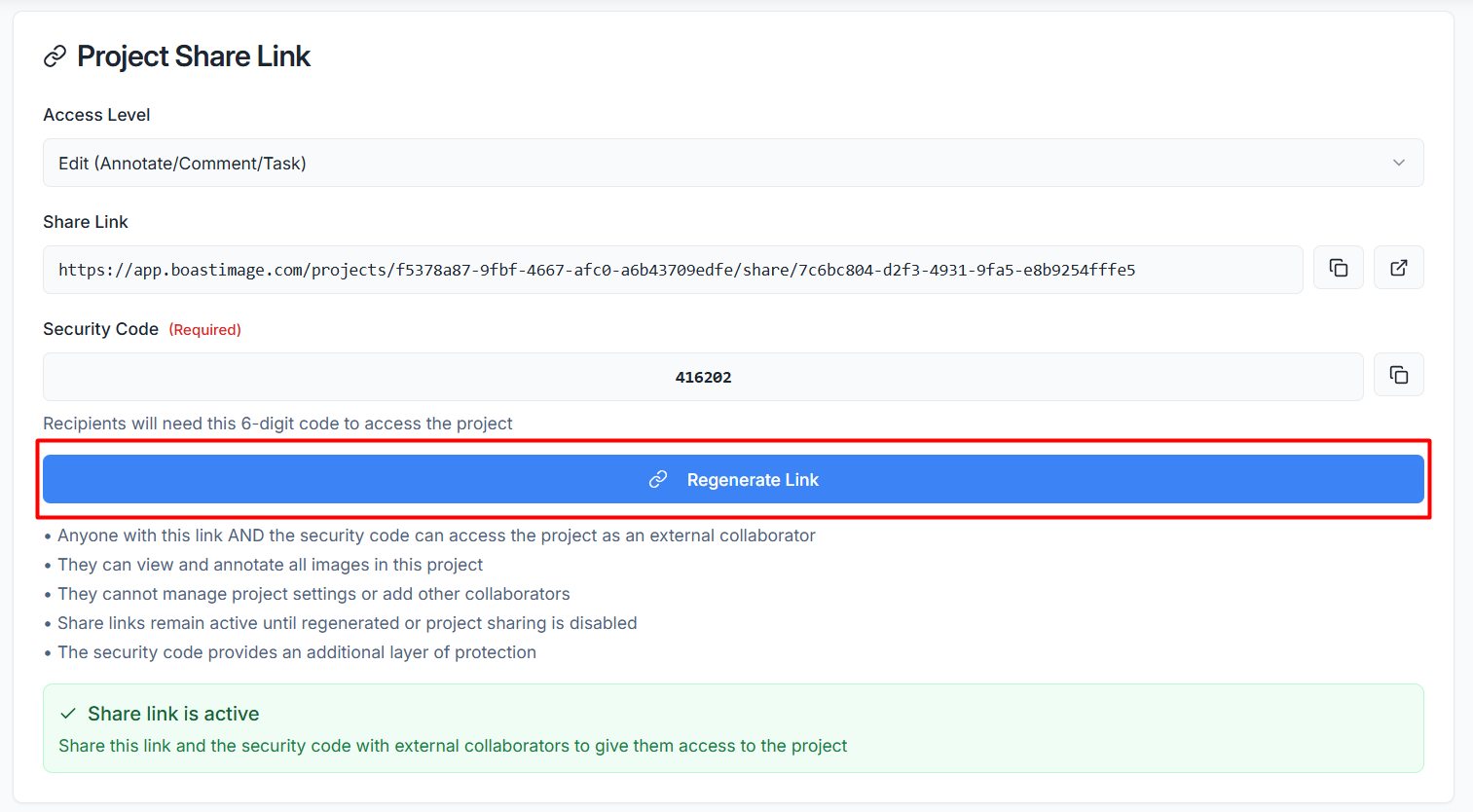
Regenerate Link: Click the blue Regenerate Link button at any time to deactivate the previous URL and security code, rendering them unusable for future access.
Was this helpful?
Still need help? Ask the team