Using the Boast Image Browser Extension
The Boast Image browser extension streamlines your workflow by allowing you to capture live websites and send them directly to your active projects.
Written By Jasen Fici
Last updated 9 months ago
Choose Your Capture Mode
Open the extension on the website you want to review to see your capture options.
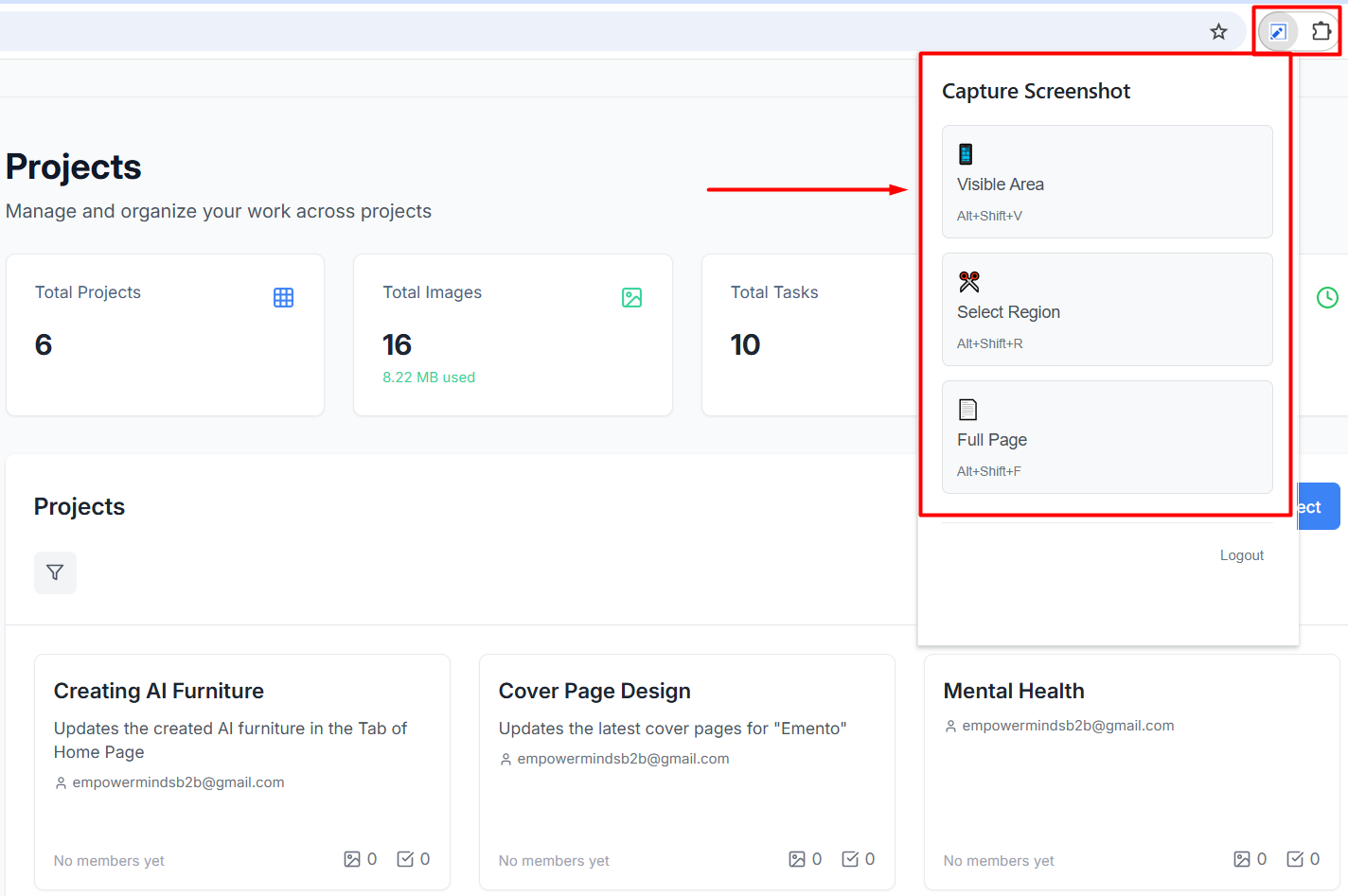
Visible Area: Captures only the part of the website you currently see on your screen (Shortcut: Alt+Shift+V).
Select Region: Allows you to click and drag to pick a specific section of the page (Shortcut: Alt+Shift+R).
Full Page: Automatically scrolls and captures the entire length of the web page (Shortcut: Alt+Shift+F).
Save Directly to Your Project
Once captured, you can choose exactly where the image should go in your dashboard.
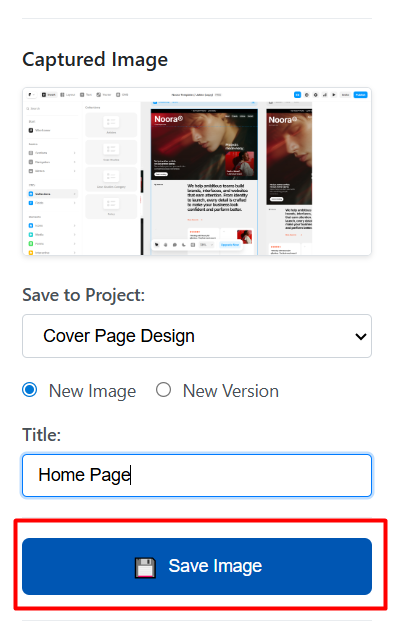
Name Your Image: Give your capture a title, like "Home Page," so it is easy to find later
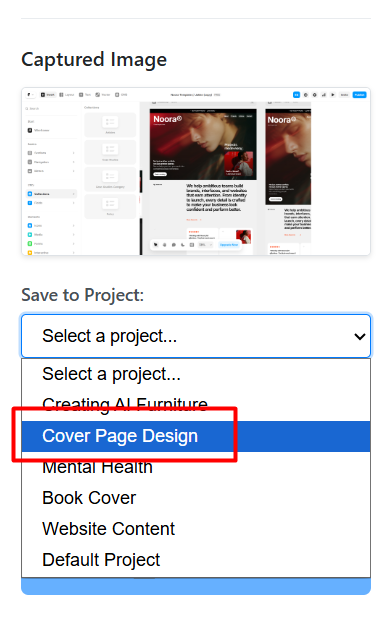
Select a Destination: Use the "Save to Project" dropdown to pick a specific project, such as "Cover Page Design"
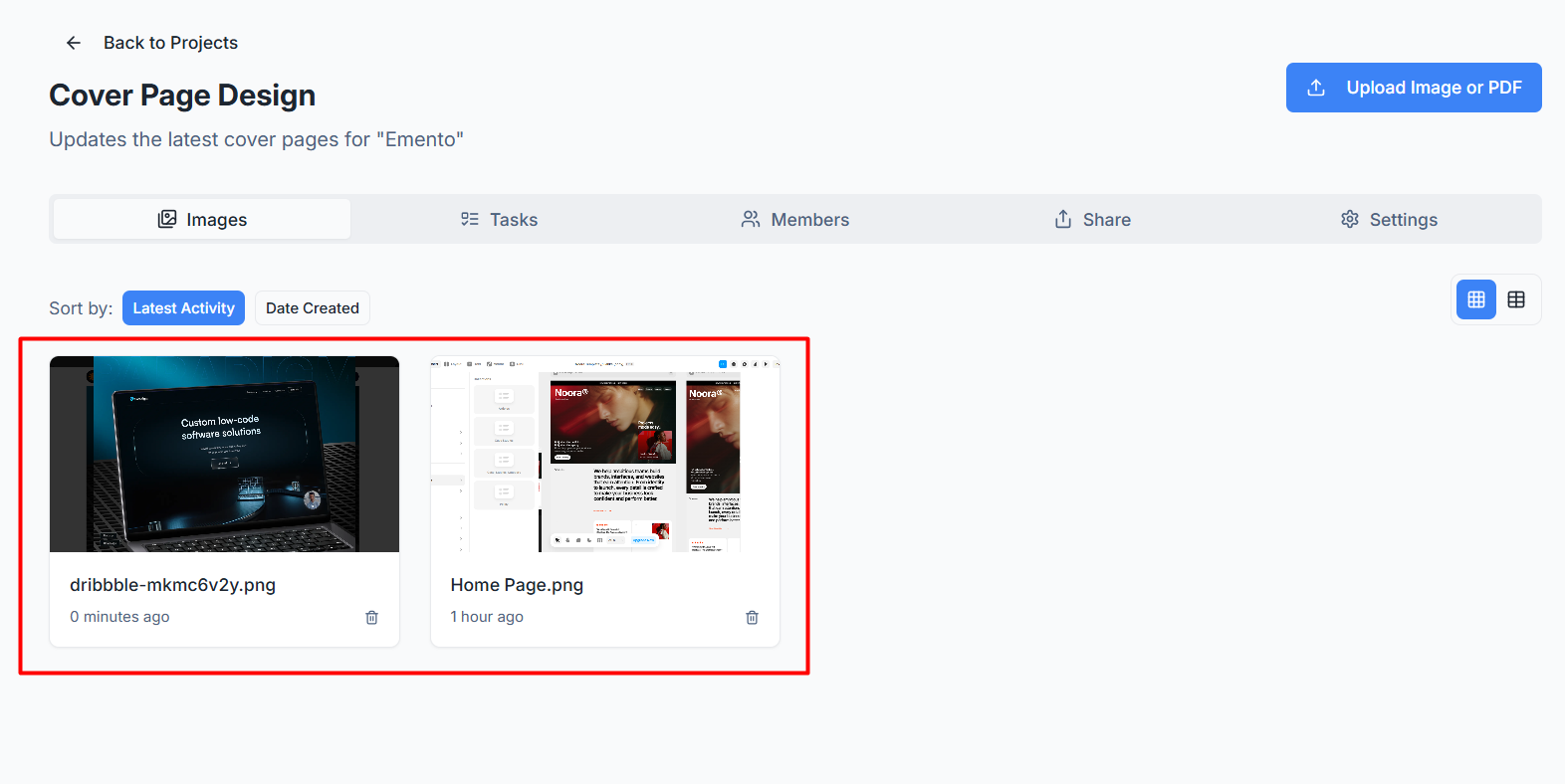
Automatic Sync: After saving, your images will appear directly in your project gallery for immediate review
Manage Updates with Versions
If you are capturing an updated design, you can keep your project organized by using versions instead of creating a new image.
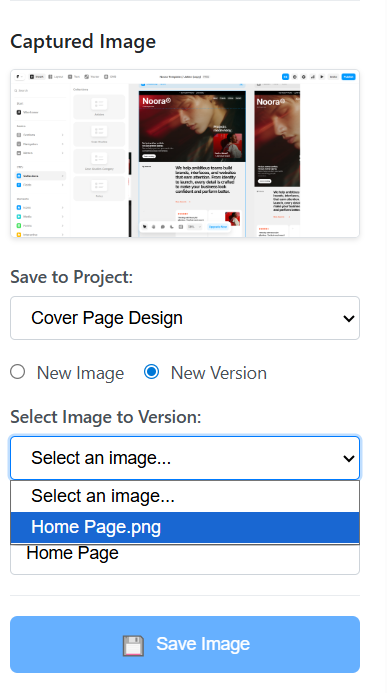
Select New Version: Instead of "New Image," select the New Version toggle.
Choose the Original: Use the "Select Image to Version" dropdown to pick the existing image you are updating.
Keep History: This allows you to stack changes and keep a clear history of all updates in one place.
Finalize and Collaborate
Complete the upload to start the feedback process with your team.
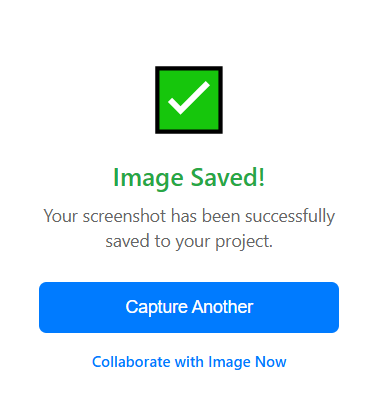
Start Working: Once you see the "Image Saved!" checkmark, click Collaborate with Image Now to go straight to the editor.
Was this helpful?
Still need help? Ask the team