Email Notifications
Boast Image keeps your team informed about project progress through automated email updates, to ensure that no feedback or task assignment goes unnoticed. Configure these settings to stay updated on real-time discussions and project activity without having to manually check the dashboard.
Written By Jasen Fici
Last updated 10 months ago
Managing Notification Settings
Before receiving updates, you must check that notifications are properly configured in your organization's administrative panel.
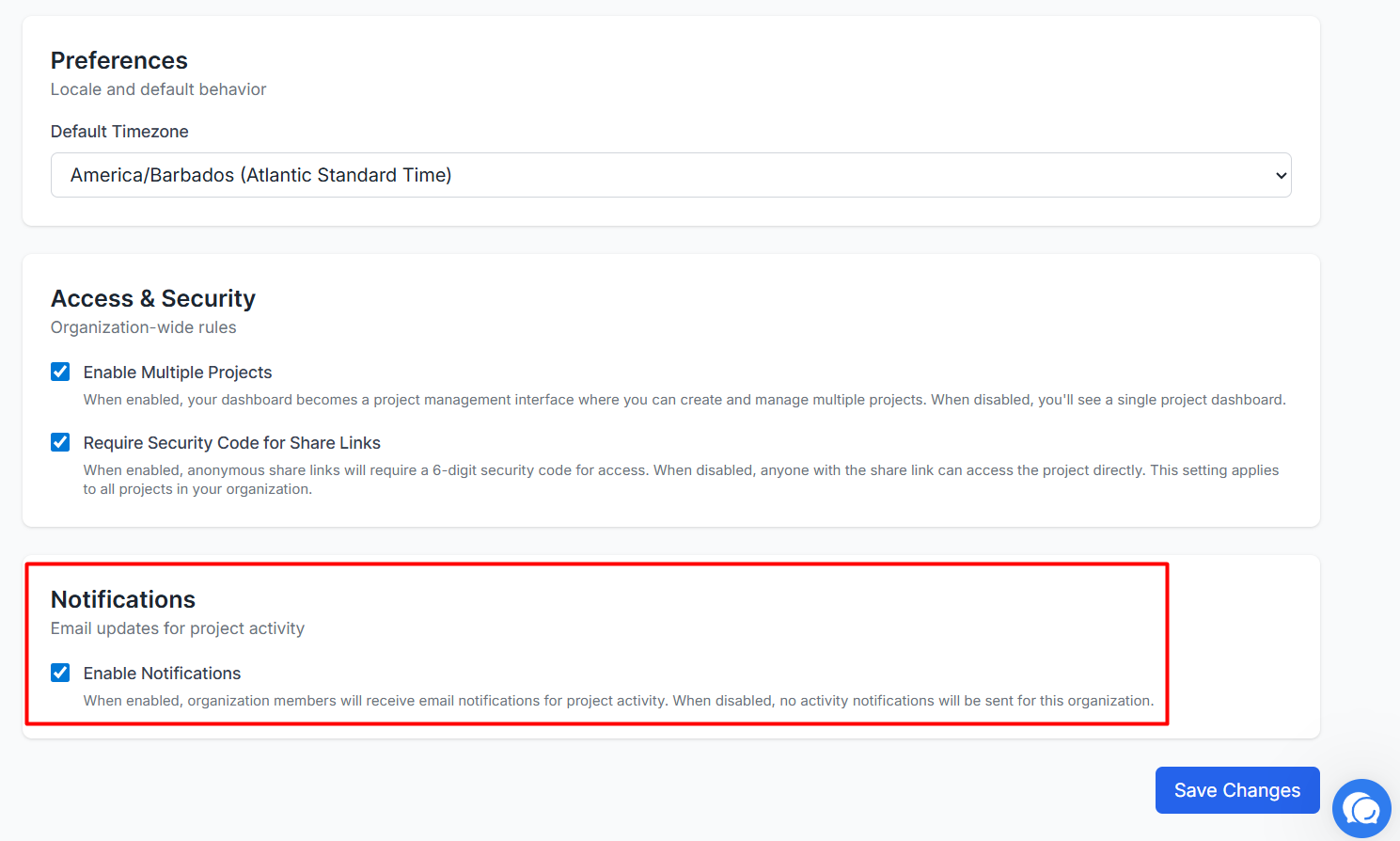
Accessing Settings: Navigate to the Administration dropdown in the left-hand sidebar and select Settings.
Enable Notifications Toggle: In the Notifications section, check the box for Enable Notifications to allow organization members to receive email updates for project activity.
Organization Rules: When this is disabled, no activity notifications will be sent for the entire organization.
Saving Preferences: Always click the blue Save Changes button at the bottom of the section to apply your updated notification rules.
Understanding the Activity Email
Once enabled, the system automatically sends "Project Activity Update" emails when changes occur.
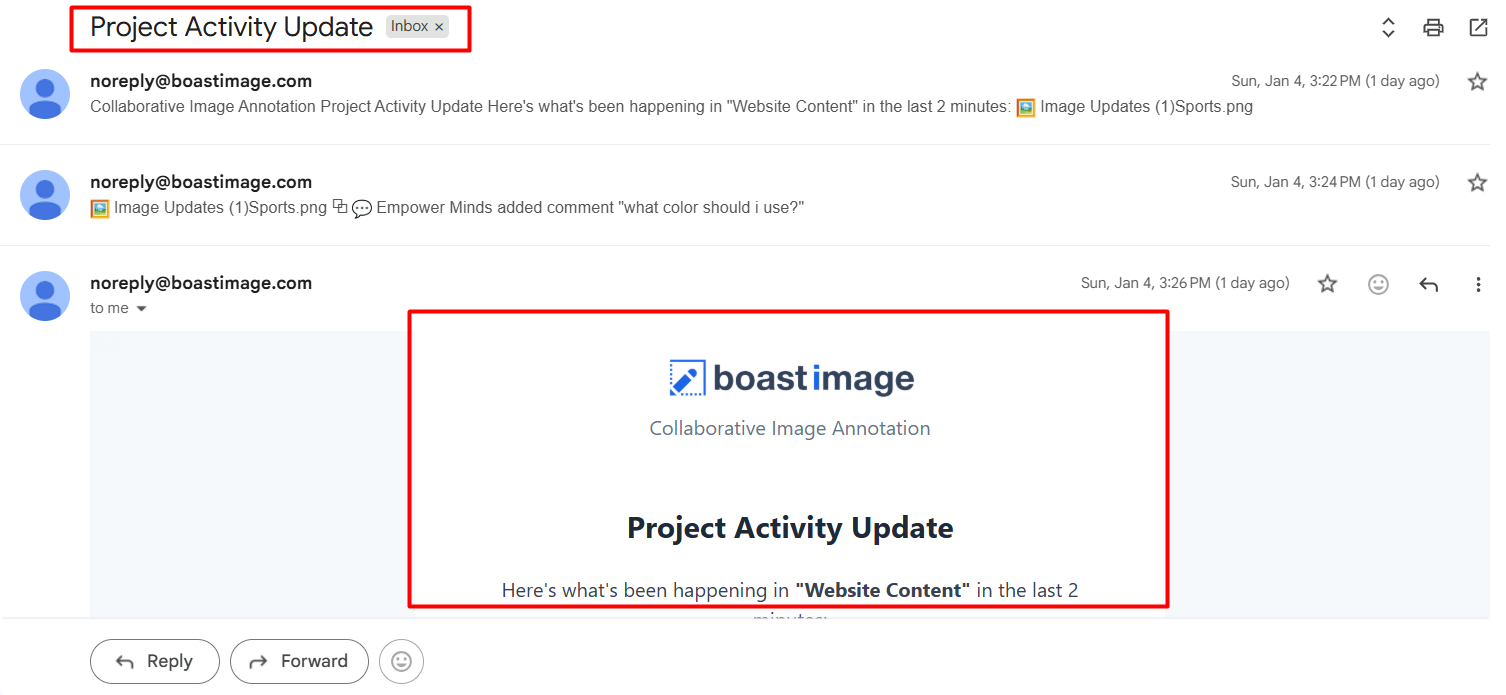
System Alerts: Emails are sent from
noreply@boastimage.comto notify you of recent happenings within your projects.Activity Summary: The notification identifies the specific project and the image being updated.
Contextual Snippets: The email provides a direct preview of the feedback, showing the sender's name and their specific message.
Timely Delivery: Notifications are consolidated to summarize activity that has happened in the last few minutes, preventing your inbox from being overwhelmed.
Was this helpful?
Still need help? Ask the team