Installing the Browser Extension
The Boast Image browser extension allows you to capture live web pages and provide visual feedback without leaving your current tab.
Written By Jasen Fici
Last updated 9 months ago
Download the Extension
To begin, you must access the official download link from within your dashboard.
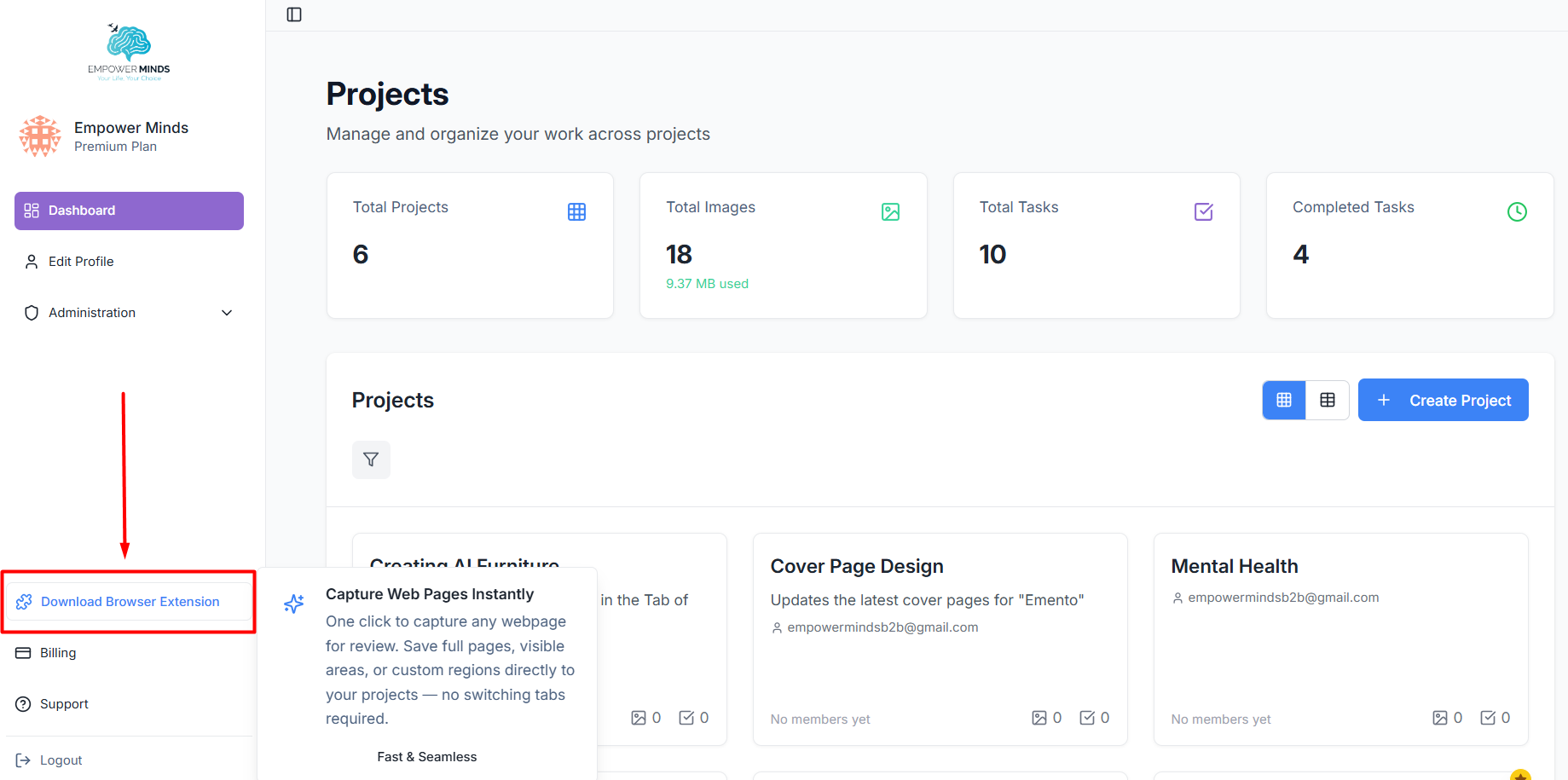
Locate the Link: Navigate to the bottom of the left-hand sidebar on your Boast Image dashboard.
Initiate Download: Click the Download Browser Extension button to be redirected to the Chrome Web Store
Add to Chrome
Once on the Chrome Web Store page, you can add the tool to your browser.
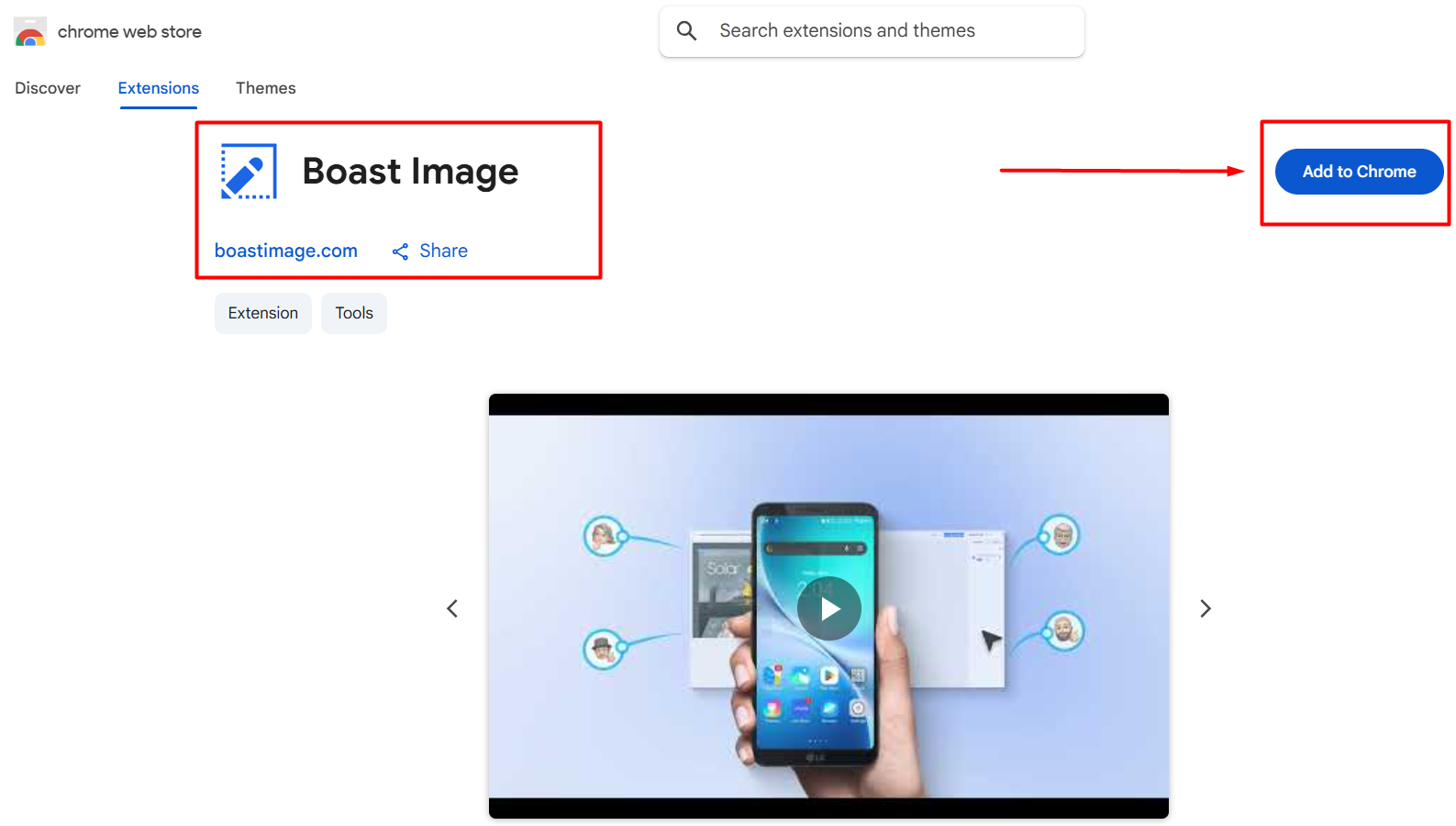
Official Page: Confirm you are on the "Boast Image" extension page.
Installation: Click the blue Add to Chrome button located in the top-right corner of the screen.
Confirm Extension Permissions
After clicking "Add to Chrome," a browser pop-up will appear requesting specific permissions.
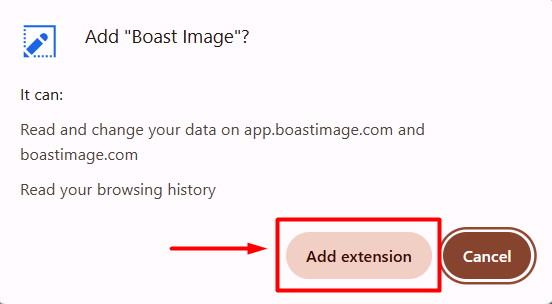
Review Access: The extension requires permission to read and change your data on
app.boastimage.comandboastimage.com, as well as read your browsing history to enable site captures.Confirm Addition: Click the Add extension button to proceed with the installation.
Complete Installation
Once the process is finished, a confirmation message will appear in the top-right corner of your browser.
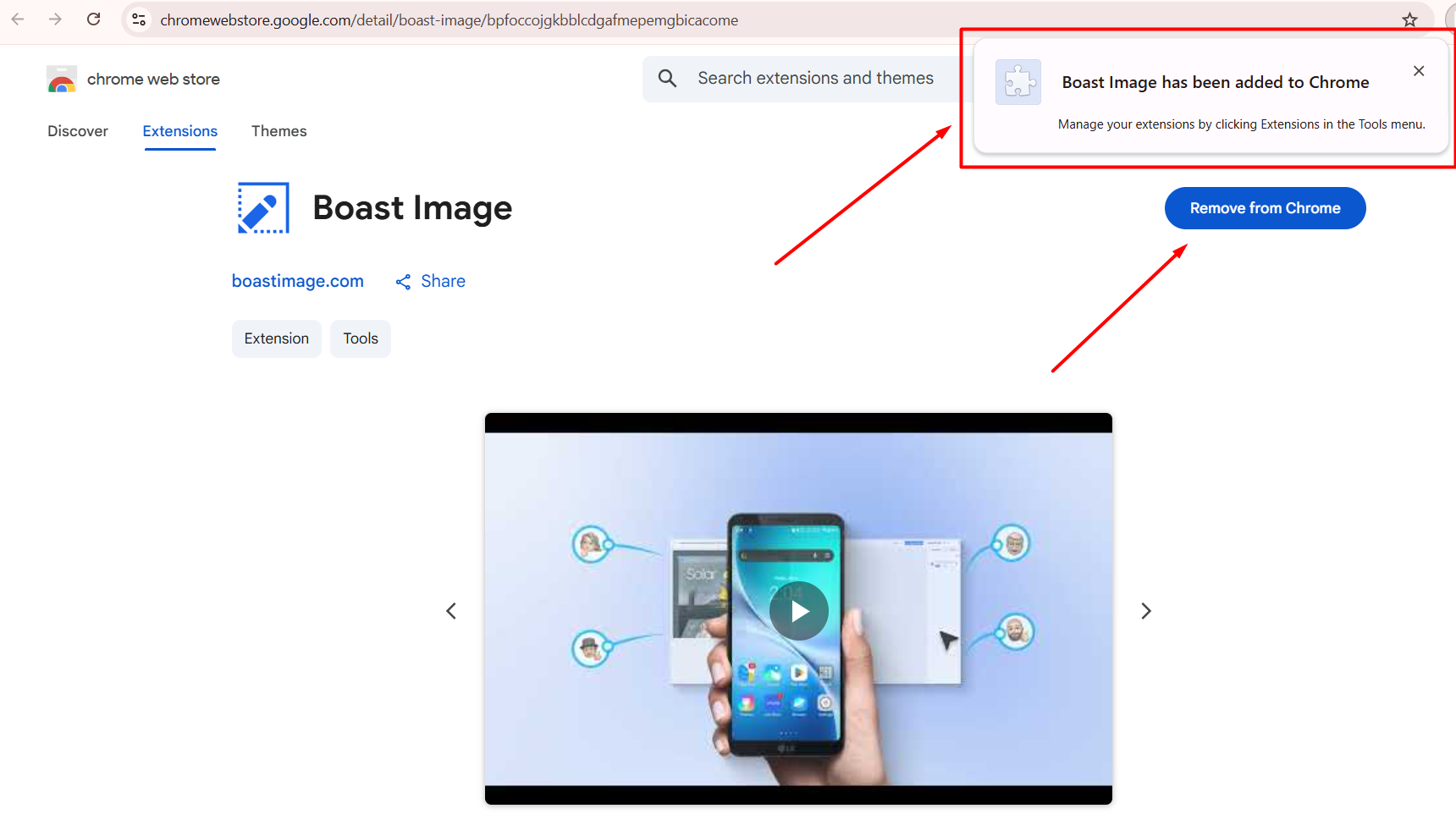
Success Notification: You will see a message stating, "Boast Image has been added to Chrome".
Manage Your Extension: You can now access and manage Boast Image by clicking the Extensions icon (puzzle piece) in your browser's Tools menu.
Uninstalling: If you ever need to remove the tool, you can return to this page and click Remove from Chrome.
Was this helpful?
Still need help? Ask the team